
How to use stayV Host · EP. 23
Using stayV HostSave the guest guide as a PDF and print it
At a glance
Open the public guide for printing to create a paper room guide or PDF. Learn what it includes, what it leaves out and when to replace it.

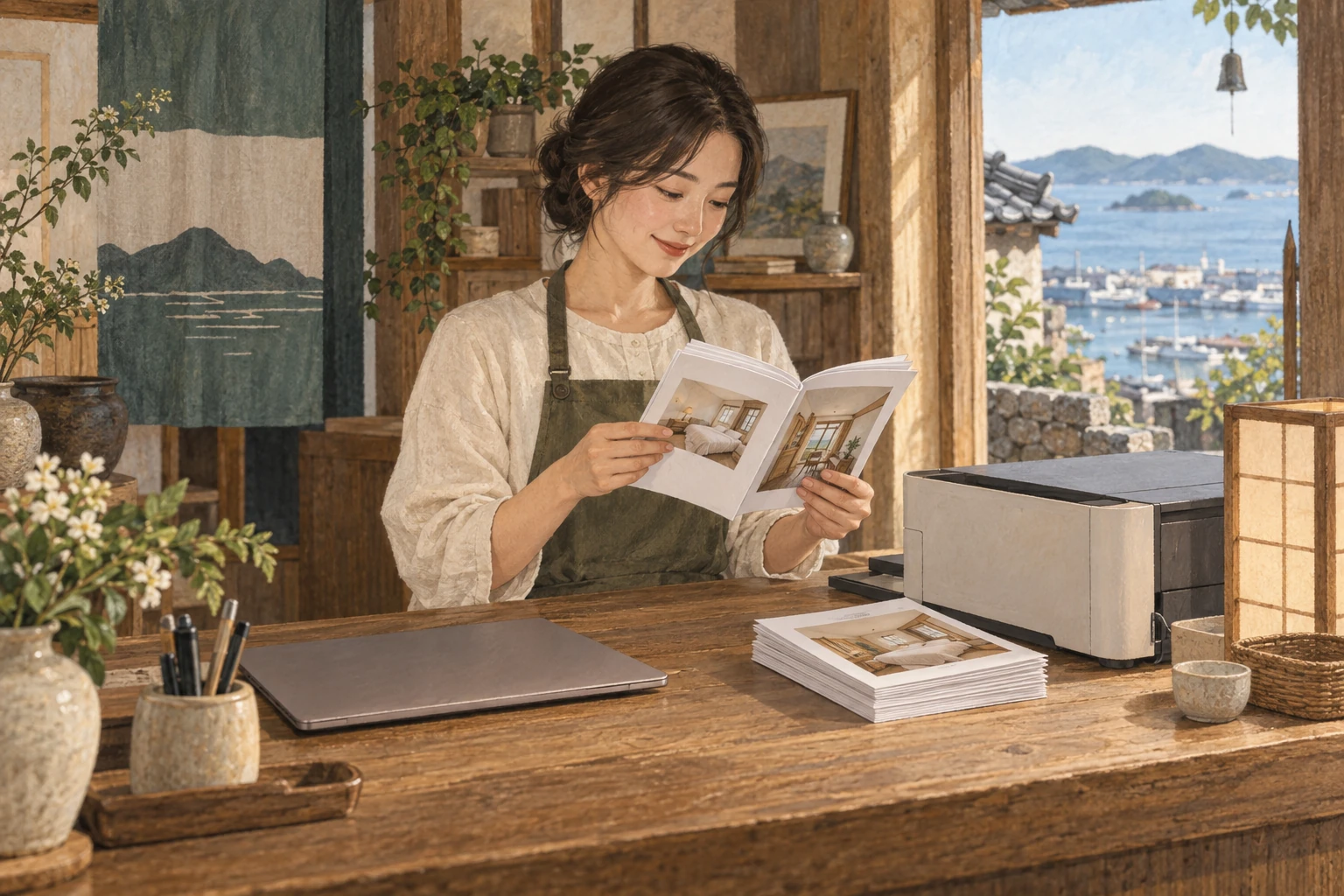
You may want a paper guide alongside the phone version. Open stayV’s public guide for printing to save a PDF or print it. Some online information is excluded, so finish by opening and checking the saved file.
At a glance
- The PDF button is on the actual guest page, outside the editor preview.
- Choose a language, then PDF download in the quick menu.
- PDFs include public guidance and exclude addresses, entry codes and Wi-Fi.
- Use the browser print screen to save a PDF or print it.
- Replace printed copies after changing the guide.
Learn more
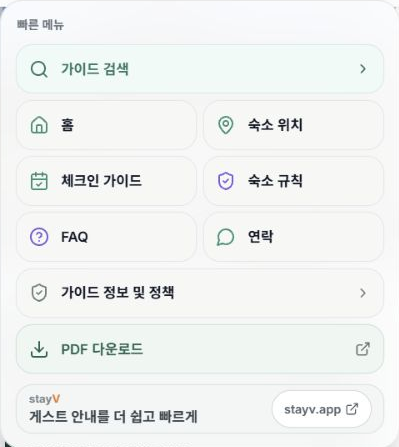
1. Open the actual guest page
Open the published property’s guest link from the dashboard, rather than the editor preview.
Select PDF download in the left quick menu. The button is absent from the Home screen and editor preview.
2. Choose the language and review the print view
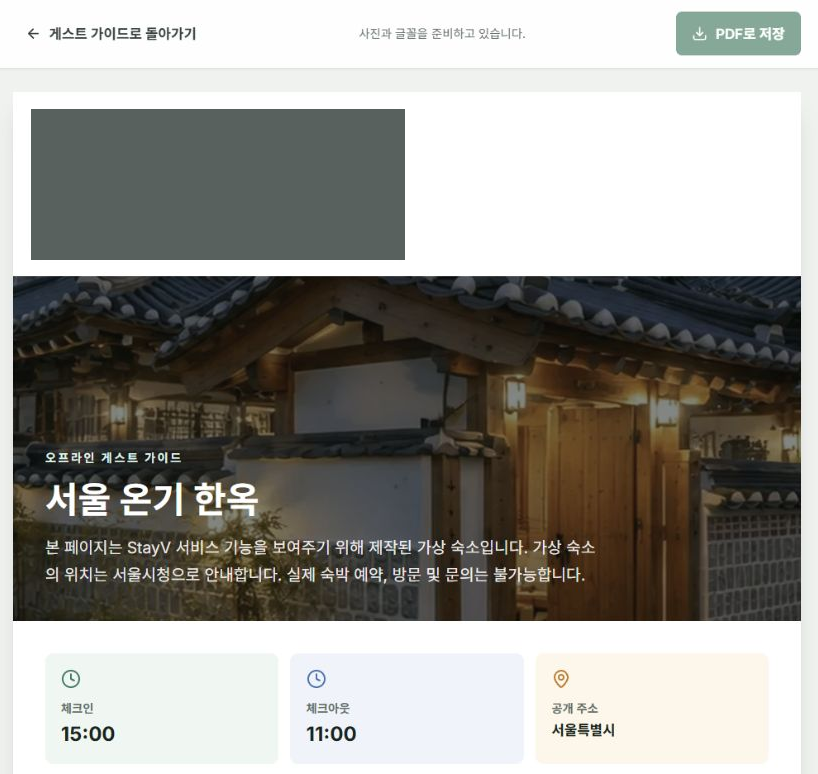
Switch to the desired language and open the print view. Wait for images and fonts, then check the property name, photos, stay information, rules and FAQs in that language.
This does not copy the protected booked-guest screen, so missing detailed addresses and door codes are expected.
3. Know what is excluded
The PDF includes public (L0) guidance only. Reservation Guide Codes, building/door/key-box codes, detailed addresses, Wi-Fi and hidden notes are excluded. Interactive features such as weather, live maps and the chatbot are also absent.
However, passwords written directly in introductions or photos may still print. Review images and QR codes too.
4. Check the print preview
Select Save as PDF at the top of the print view to open browser printing. Check for cropping and awkward page breaks on A4. To save a file, choose Save as PDF rather than a printer; names vary by browser.
Printed results can differ from the screen. Check that unwanted dates or addresses are not added at the top or bottom.
5. Open the saved file
Check titles, photos, rules, FAQs and the QR linking back to the guide. If file paths or account names appear at the bottom, turn off print headers and footers.
Do not place or share a PDF containing real passwords. Send essential entry information through booking-platform messages and the code-protected online guide.
6. Decide when to replace copies
Saved or printed PDFs do not change with the online guide. Reprint after changing appliances, rules or directions.
Keep the link and QR to the latest guide in the printout. Files already distributed cannot be recalled by making the online guide private.
Check your progress
- You opened the print view from the actual guest page.
- You checked the saved PDF’s content, photos and page breaks.
- It includes a link and QR back to the latest guide.
Availability and things to know
Guest-guide PDFs are available on the paid Plus plan.
Read next
Episode 22 · Create a Wi-Fi QR code for the room