
How to use stayV Host · EP. 31
Using stayV HostManage today's tasks and property preparation schedules
At a glance
Plan cleaning and inspections between check-out and the next arrival. Follow today's tasks through creating work and recording completion.


When one guest leaves and another arrives that afternoon, tasks can pile up. Property operations shows the time between reservations and helps organise cleaning and inspections. Distinguish planned times from work actually completed on site.
At a glance
- See today’s work and message tasks in Property operations.
- Review the time from check-out to the next check-in in the preparation schedule.
- Create cleaning and inspection tasks within that period.
- Mark completion only after the work is finished on site.
- Recheck preparation windows and tasks if reservation times change.
Learn more
1. Open Property operations
Go to Reservation operations → Property operations. It contains today’s tasks, preparation schedules and task management, separate from the calendar-connection screen.
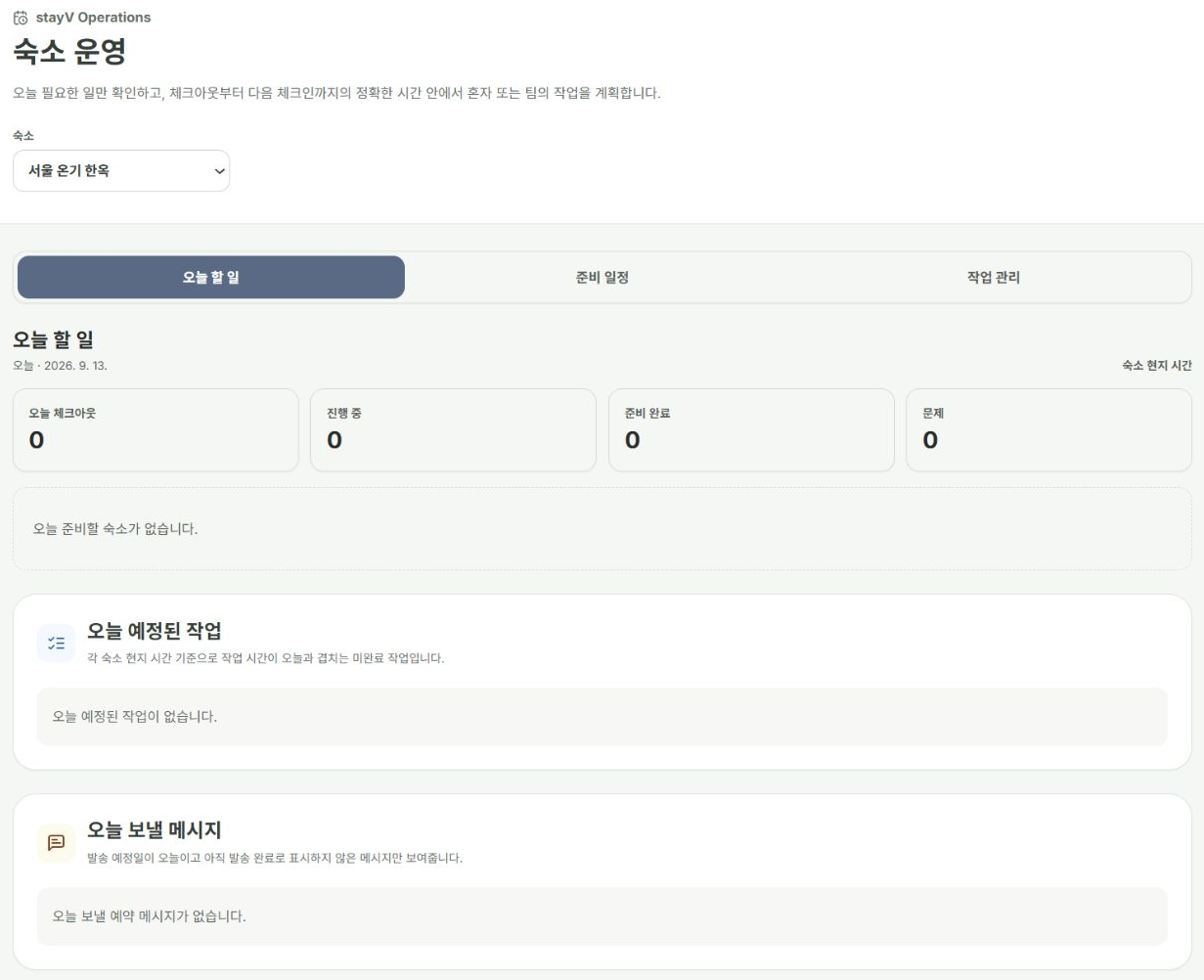
2. Check today’s work and overdue items
Review tasks to finish and messages to send today. Check delayed or unfinished lists for earlier preparation still needing attention.
Message copied, cleaning completed and property ready are recorded separately. Completing one does not complete the others.
3. Review the available preparation time
Check the current check-out and next check-in dates and times. If the next arrival is tomorrow, include the date when reading the available interval.
For overlapping or unclear reservations, check the source platform and actual room condition first. A calendar alone does not establish that a room is vacant.

4. Create a task and describe the work
Select Create task in this window on a preparation card, or choose the property and schedule in task management. Enter a title, instructions and start/end times within the interval after check-out and before the next check-in.
Be more specific than “Cleaning,” for example: “Remove hair from bathroom drain, replace four towels and two bedding sets, take one photo after removing rubbish.” Save recurring titles, instructions and durations in property templates for reuse. Select Create task and check its title and times in the list.
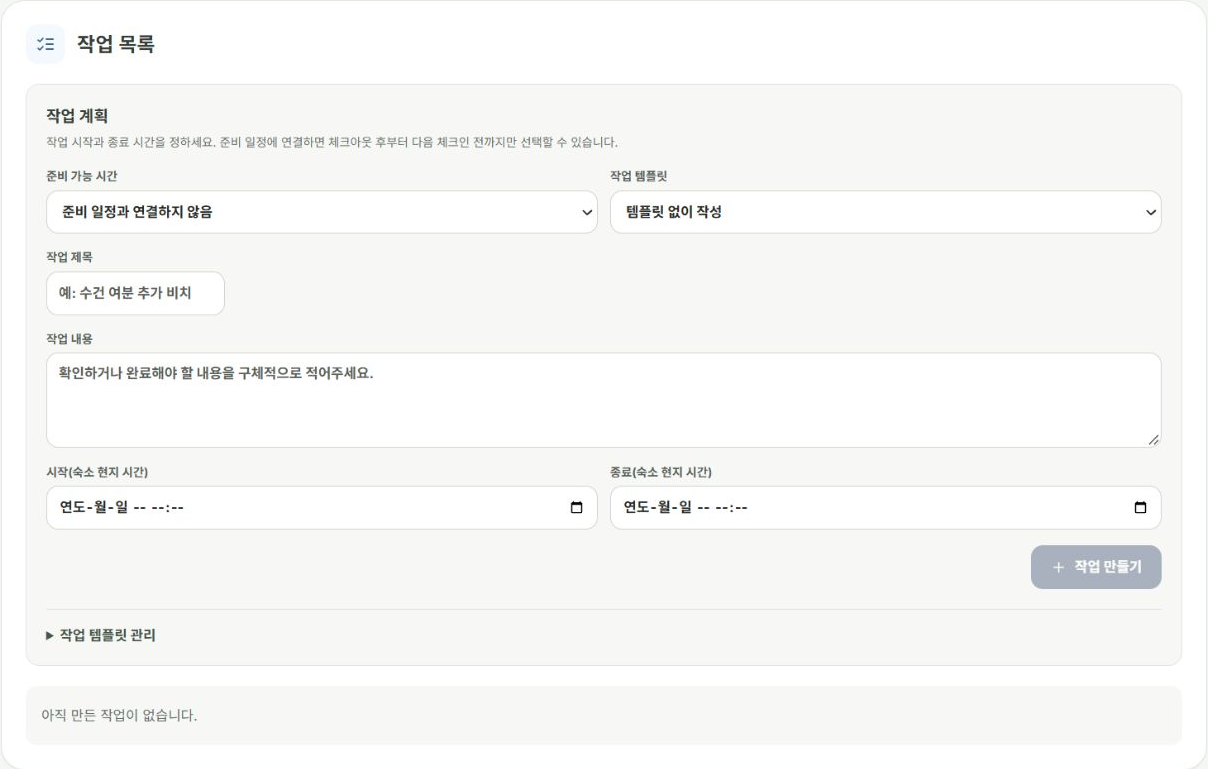
5. Confirm on site before marking completion
A check-out time passing does not prove the guest has left. The person who actually confirms departure, cleaning, inspection and access preparation should mark the corresponding stage complete.
Use reservation times to plan, and check departure and room readiness on site.
6. Replan when reservations change
When the next arrival time changes, review the preparation window and task plan. Even if marked Property ready, recheck access details and readiness against the changed reservation.
Plus supports this workflow for one host. Premium adds team functions such as cleaner assignment, comments and approvals.
Check your progress
- You reviewed the interval between check-out and the next check-in.
- You kept tasks within that interval.
- You confirmed work on site before marking completion.
Availability and things to know
Plus provides preparation tools for one host. Premium provides team tools for working with assigned staff.
Read next
Episode 30 · Find help and contact support
Episode 32 · Record property condition and inspection photos