
How to use stayV Host · EP. 02
Using stayV HostFind your way around the dashboard
At a glance
Check your property status, edit information and open the guest guide from the dashboard. Learn the difference between the guest link, Guide Code and door-lock code.


The dashboard is the first screen you see after logging in. You do not need to understand every number and button at once. Start by finding your property’s status, where to edit it, and how to open its guest guide.
The screenshots come from the operating Seoul Ongi Hanok account. Editing is demonstrated with the Seoul Ongi Hanok · Practice guide draft. The items shown may vary with your number of properties, plan and reservations.
At a glance
- Check whether the property card says Draft, Published or Private.
- Open the property editor to make changes, then save them.
- Work through today’s tasks, starting with information guests will need soon.
- For published properties, open the guest guide or copy its link from the card.
- The guest link, stayV Guide Code and door-lock code serve different purposes.
Learn more
1. Find your property and its status
Check the property name on the dashboard. If you manage several properties, use both the name and photo to select the one you want. This is especially helpful when several rooms share a building.
The status tells you whether guests can currently open the guide.
- Draft: You are still preparing the content. Guests cannot view it yet.
- Published: You can send the link to guests. The card button may also show “Live.”
- Private: Publication is temporarily paused.
If you cannot find a property, check whether the status filter is hiding it. Change the filter to All to see it again.
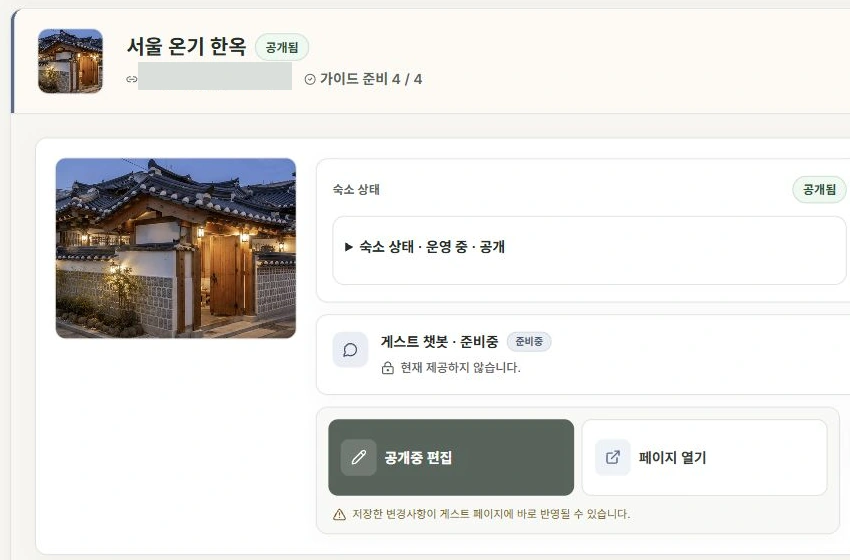
2. Open the property editor to make changes
To change a check-out time, for example, open that property’s editor. If you cannot find the button on the dashboard, select the same property under Property management at the top.
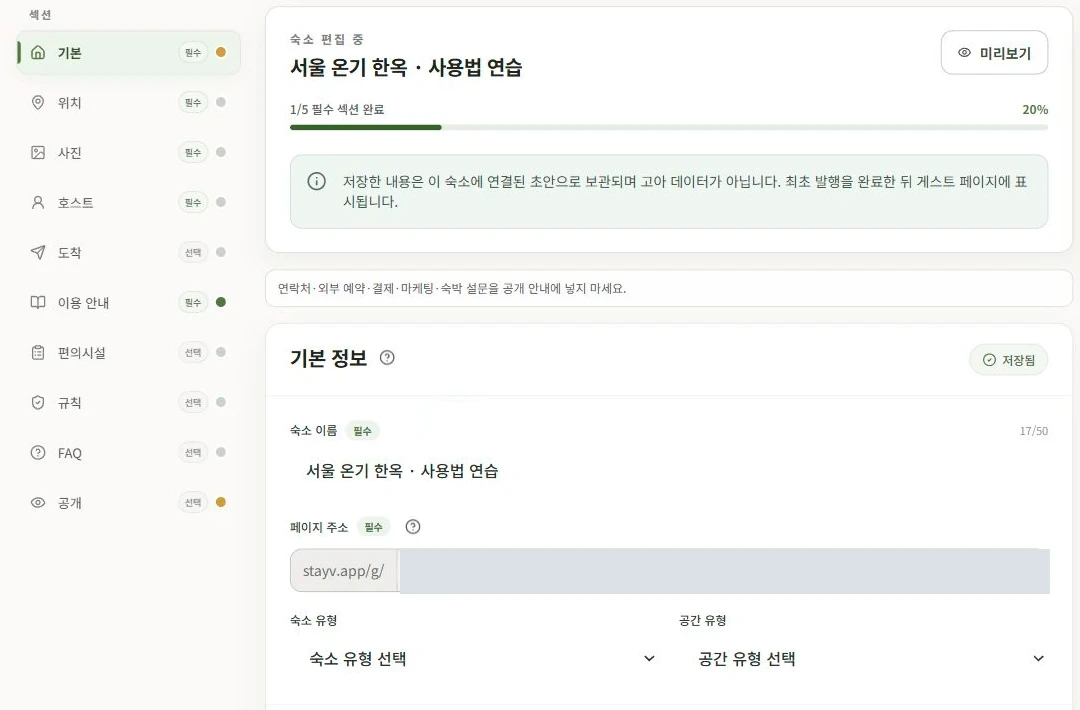
In the editor, change the time under Stay information on the left, then select Save on that screen. Returning to the dashboard without saving will leave the old information in place.
Edit the introduction in Basic, images in Photos, and boiler or air-conditioner instructions in Amenities. If you are unsure which menu to use, see Episode 3, Using the property editor.

3. Start with the most urgent task
Select a task or preparation item to open the relevant work. A missing-photo notice takes you to photos; a publication-preparation notice means checking Publication.
Start with information guests will need soon. If someone checks in tomorrow, review the check-in time and directions. If you have taken new photos, update those first.
Some sections may be empty when you have no reservations. You do not need to create fake reservations to fill them.
4. Open the guide for a published property
When a property is Published, its card lets you open the guest guide or copy the link. Open it yourself before sending it to a guest.
Check the name and photos, then open an instruction guests are likely to need. If you wrote air-conditioner instructions, for example, check that they are easy to find in Amenities.
If no link or QR button appears, the property may still be a draft. Complete missing items in the editor’s Publication section and publish it. You do not need to create another property just because a button is missing.
5. Understand the link, Guide Code and door-lock code
Here is how the three differ.
| Name | What it opens | Who receives it |
|---|---|---|
| Guest link | The property’s guide page | Send it to booked guests |
| stayV Guide Code | Guidance reserved for booked guests, such as the detailed address | Share it separately with booked guests |
| Door-lock code | The actual entrance door | Share it at the appropriate time for entry |
If the dashboard shows a Guide Code, keep it out of screenshots you post to a blog or social media.
To manage instructions and entry information that differ by reservation, open the reservation under Reservation operations at the top. Property-wide settings and reservation-specific settings live in different menus. Decide who the information is for before editing.
6. Know what the numbers mean
The plan area’s “Active guides” count shows how many guides you currently publish and how many your plan allows. Preparation counts on a property card show how much of that property’s photos and information you have completed. These numbers describe different things.
If reservation summaries or visit analytics appear, focus on what you need. More guide visits do not necessarily mean more bookings or revenue.
For everyday work, repeat check status → edit and save → check the guest guide.

Check your progress
- You know whether your property is Draft, Published or Private.
- You know how to edit and save information.
- You can explain the difference between a guest link, Guide Code and door-lock code.
Availability and things to know
The dashboard is available on all plans. Reservation summaries and visit analytics may be unavailable on some plans.
Read next
Episode 1 · Create your first property guide
Episode 3 · Using the property editor: 10 menus, saving and previewing