
How to use stayV Host · EP. 01
Using stayV HostCreate your first property guide
At a glance
Create a property in stayV, add essentials such as its name, introduction and check-in time, and publish your first guide. Includes an introduction you can adapt.

Trying to fill in every detail at once can make it hard to get started. Let’s create your first guide with essentials such as the property name, introduction and check-in time, then open its guest link.
The screenshots show real stayV screens. We demonstrate the input process with a draft called Seoul Ongi Hanok · Practice guide, and the finished result with the operating property Seoul Ongi Hanok. Each step includes examples you can adapt to your property.
At a glance
- Go to Property management → Add property → Create new, enter a name and create a draft.
- In Basic, introduce the property in two or three sentences.
- Add location, photos and host information, then check-in time and Wi-Fi in Stay information.
- Save, then use Preview at the top to see the guest view.
- In Publication, complete missing items and publish to get a guest link.
Learn more
1. Create a property in Property management
After logging in, go to Property management → Add property → Create new. Enter the property name and select Create draft to open the editor.
Use a name similar to the one guests saw when booking. A very different name could make them think you sent a link to another property. For example, if your Airbnb listing is “Bukchon Private Hanok,” use the same name for the guide.
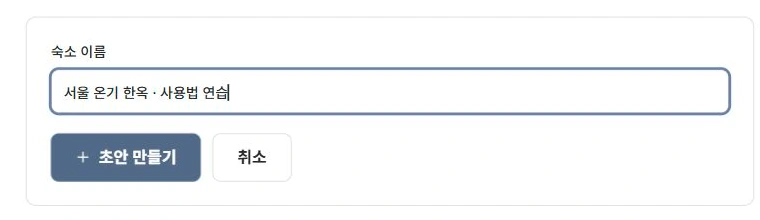
If you already created a property, you can continue with it. Find it in Property management and open the editor.
2. Start with an introduction in Basic
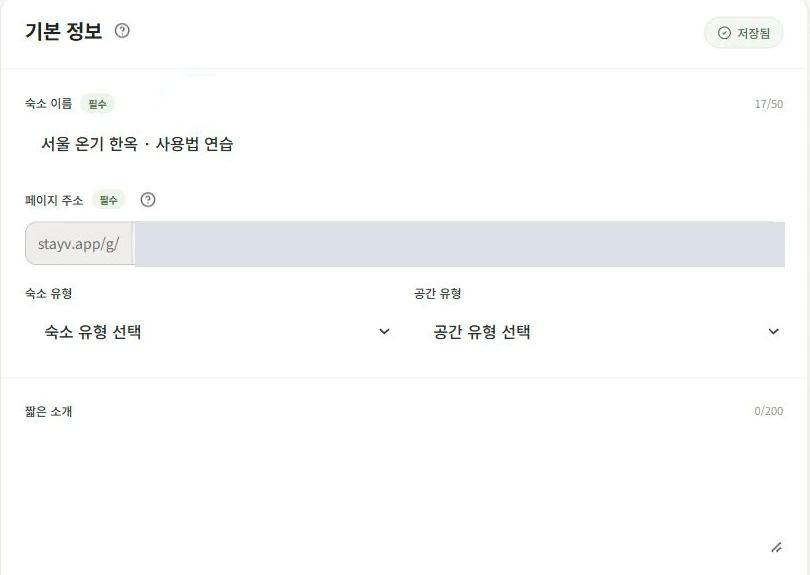
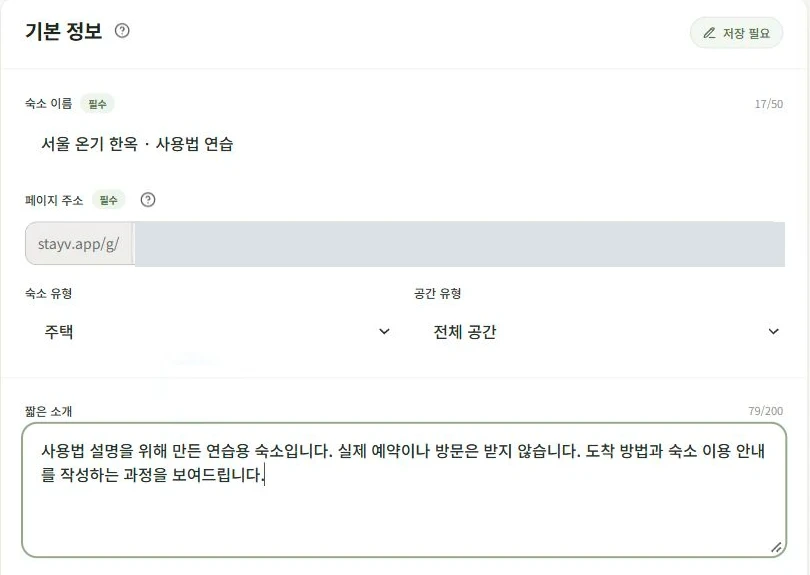
The Basic menu on the left covers the property name, type, introduction and guide languages. Two or three sentences describing the space and who it suits are enough.
Example introduction
This private, two-storey hanok is in a Bukchon alley. Your group has exclusive use of two bedrooms, a living room and a kitchen, making it a comfortable choice for families. It is an eight-minute walk from Exit 2 of Anguk Station.
Replace the location, number of rooms, shared spaces and nearby station with details of your property. When finished, select Save at the bottom.
3. Add location, photos and host information
In Location, search for the address and check that the map pin points to your property. Check the building itself, including whether the pin leads to a neighbouring building or a rear entrance.
In Photos, upload images showing the property as it is today. Guests see the first photo as soon as they open the guide, so a recognisable view of the gate or exterior works well.
In Host, enter the name and introduction guests will see. Put phone numbers and messenger IDs in the contact-method settings rather than the introduction.
Select Save and next after each section to save and move to the next menu.
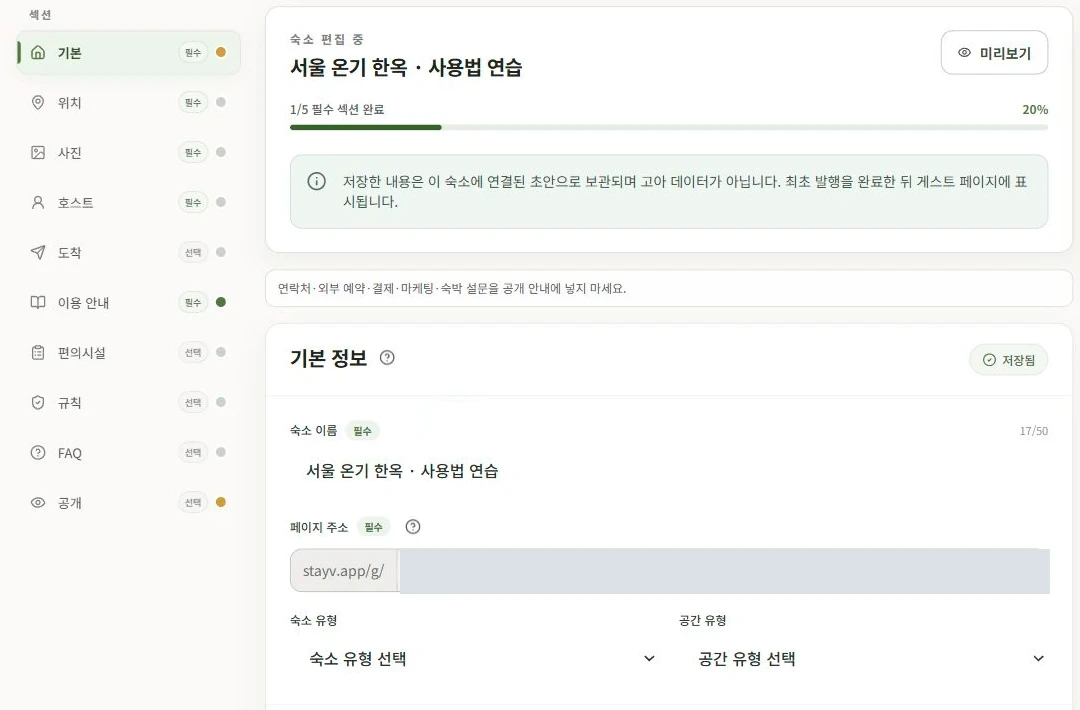
4. Add the essential stay information
Open Stay information on the left to enter check-in and check-out times, Wi-Fi and parking. Start with information you can give accurately.
Put the Wi-Fi password only in its dedicated field. A password written in a publicly visible property introduction could be exposed. Keep the parking summary short, such as “One free space in front of the building.” Add directions and the parking location separately in Arrival so guests can find them easily.
You can add directions, appliance instructions, rules and FAQs gradually. Before sending the link, make sure guests have everything they need to enter the property.
5. Save and read the preview
The Input preview on the right shows how your writing looks as you work. To browse the whole guide as a guest, save and open Preview at the top.
Check the property name and photos, whether the check-in time is easy to find, and whether the text is comfortable to read on a phone. Return to the relevant menu to fill gaps, then save again.
For an already published property, saving may update the guest view immediately. Read your changes before saving.

6. Publish and open the guest link
Open Publication on the left to see missing items and the checks required before publishing. Complete missing information in the relevant menu, save and check again.
Once you have reviewed everything, follow the on-screen publication instructions. After publishing, open the actual link you will send to guests. When that link opens correctly and shows your information, your first guide is ready.

Check your progress
- You created the property with a name guests recognise.
- You added and saved its introduction, location, photos and check-in time.
- You checked both Preview and the actual guest link.
Availability and things to know
The Free plan supports creating a property and writing a basic guide. The number of properties you can create and guides you can publish depends on your plan.