
How to use stayV Host · EP. 18
Using stayV HostAdd direct reservations and manual blocks
At a glance
Record dates missing from external calendars, such as phone bookings or repair periods. Learn the difference between a direct reservation and a manual block, then check what you saved.


Phone bookings and stays arranged with friends may be missing from external calendars. Repairs may also require holding dates. In stayV, distinguish guest stays from periods held without guests, then check how they appear after saving.
At a glance
- Choose Direct reservation for a guest stay and Manual block for repairs or personal use.
- Enter the property and dates under Add reservation or block.
- Do not enter reservations already imported from Airbnb again.
- After saving, check the property, dates and event type on the calendar.
- Prepare the direct reservation’s Guide Code in its new card.
Learn more
1. Open Add reservation or block
Select the property under Add reservation or block in Reservation schedule and access management. This records an existing booking; it does not create a guest booking or payment page.
Check the calendar and list first. Do not re-enter a booking already imported from Airbnb or another platform.
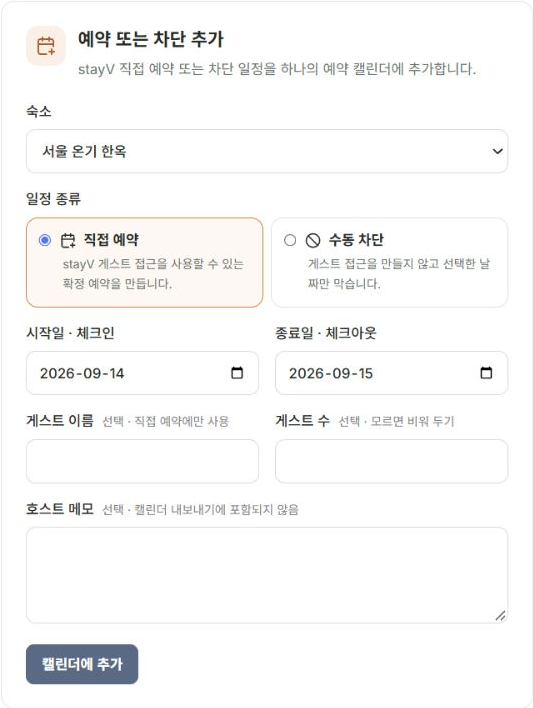
2. Choose a reservation or block
Choose Direct reservation when guests will stay and need guidance. Choose Manual block for dates held for repairs or personal use without guests.
Both appear on the calendar, but a manual block has no guest or Guide Code.
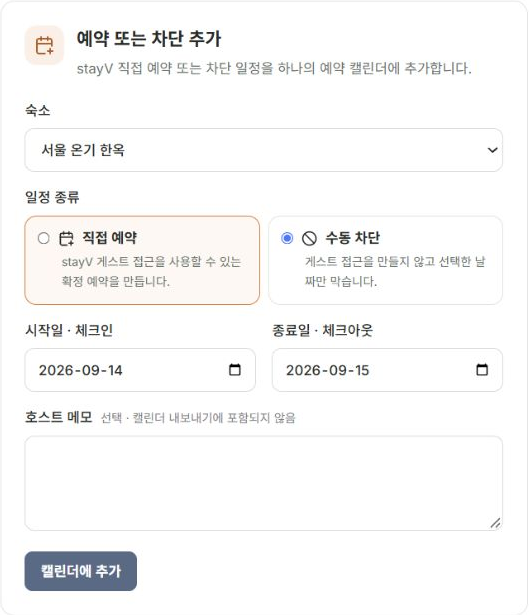
3. Enter dates and optional details
Enter check-in and check-out dates and check that the property’s saved times are applied. For a two-night stay, check-out is the day after the final night.
Enter names, party size and notes only as needed for operations. Keep door codes and sensitive personal details out of notes. Adjust arrival/departure times in the reservation card’s detailed time settings.
4. Check the saved event and card
Select Add to calendar, then check property and dates. For a direct reservation, use Prepare stayV Guide Code on its new card to set up access information. Leave building, door-lock or key-box fields blank if your property does not use them.
5. Check what you are deleting
Deleting a Guide Code removes access information but leaves the reservation schedule. Decide whether you intend to unblock dates, cancel a direct reservation or remove access details before proceeding.
If a guest already has a card, review its dates and information before adding another. Avoiding overlapping entries also makes codes easier to find.
6. Manage Airbnb and the actual lock separately
Entering a direct reservation in stayV does not automatically block Airbnb dates. Block them in Airbnb or configure the export connection described in Episode 33.
Guidance release times and actual lock settings are separate too. After saving, check dates, the code method and the guidance window together.
Check your progress
- You chose the appropriate reservation or block type.
- It does not duplicate an imported booking.
- You checked saved dates and necessary access details.
Availability and things to know
Direct reservations and manual blocks are available on the paid Plus plan.
Read next
Episode 17 · Check imported reservations and prepare guest guidance
Episode 19 · Set arrival and entry-guidance times for each reservation