
How to use stayV Host · EP. 11
Using stayV HostCheck your guide and publish it
At a glance
A new property needs to be published before guests can open its link. Review required fields, information hidden in photos and the final live guest view.

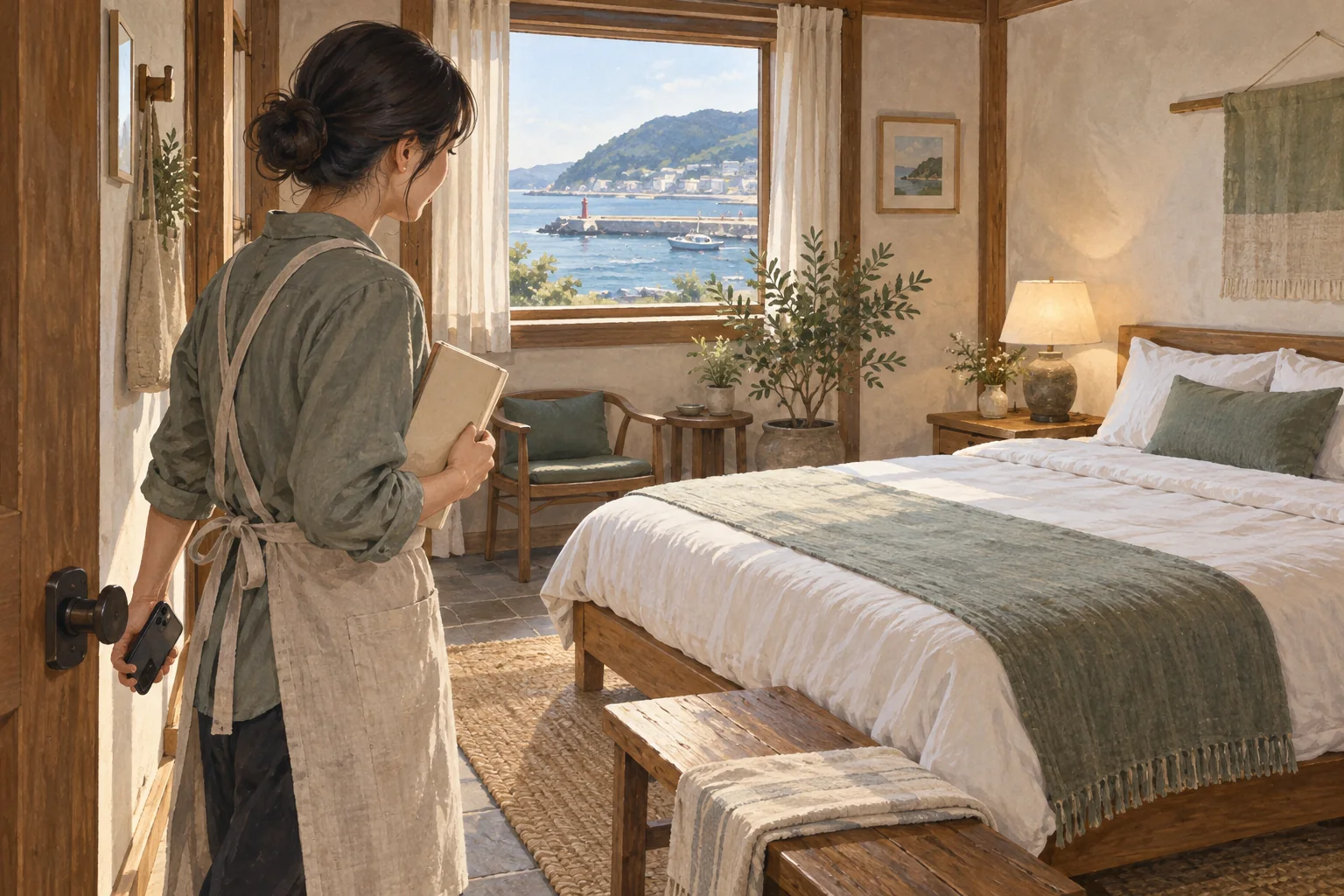
After entering information, you may wonder when guests can see it. Saving a new property is only the first step. Complete Publication before guests can open the link.
Follow the checks and publication sequence using the operating Seoul Ongi Hanok screen. If your property is already live, use the same screen to review it.
At a glance
- Find and complete missing required items in Publication’s readiness status.
- Open instructions in Preview in the order guests will read them.
- Enlarge photos to check for password notes and entry codes.
- Tick the confirmation, select Publish and wait for completion.
- Open the finished guest link in a browser where you are logged out.
Learn more
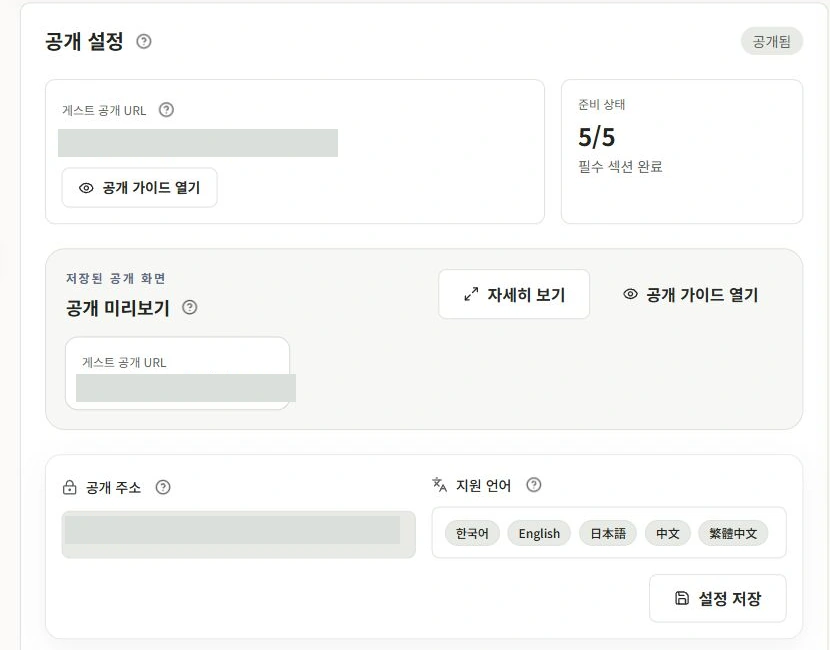
1. Check readiness in Publication
Go to Property management → Edit the property → Publication. Readiness and the Pre-publication checklist show missing items.
Start with these five checks.
- Basic information: Correct name and property type.
- Location: Address applied and map pin correct.
- Photos: At least one public photo.
- Host: A host name for guests to see.
- Stay information: Basic times, Wi-Fi and parking information.
Return to the relevant menu to complete and save missing items, then recheck Publication. Filling a field without saving will not update readiness.
2. Browse Preview in the guest’s reading order
Select Preview at the top to review saved guidance. Check the cover and name, then open the arrival, stay information, amenities, rules and FAQ items you have written.
For an air-conditioner card, open it rather than checking only the title. Can guests find the remote, identify the first button and read the lettering in the photos?
Close Preview to fix issues in the relevant menu, then save. Preview is for checking; the shareable guest link becomes available after publishing.
3. Recheck public text and photos
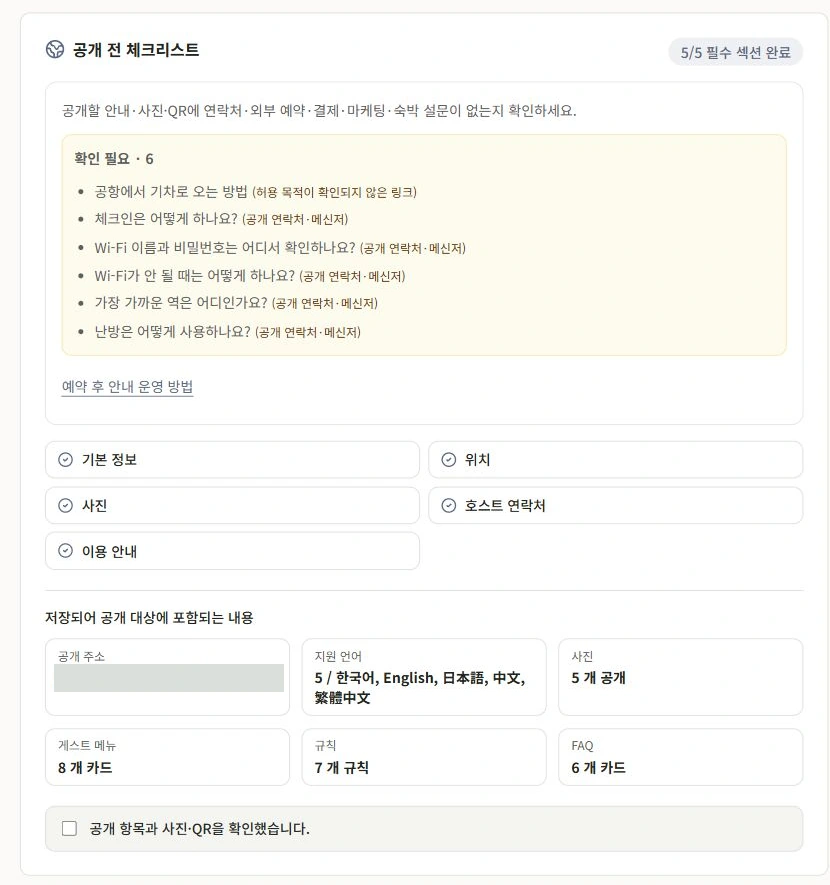
Read the publication-screen guidance and look for information that should be kept private in public text and images.
Look especially for Wi-Fi passwords, building and door codes, booking references and guest contact details. Background notes and other QR codes are easy to overlook. Enlarge and inspect images yourself as well as using automated checks.
Manage exact addresses and entrance details for booked guests through disclosure settings. Check that the same information is not repeated in the public introduction or cards.
4. Confirm your checks and publish
Tick I have reviewed public items, photos and QR codes after checking them.
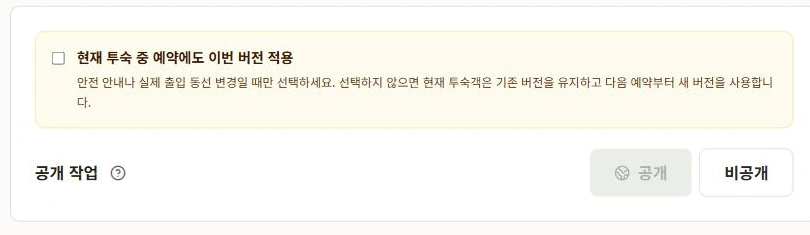
For a revised guide, also review Apply this version to reservations currently staying. If unticked, current guests continue seeing earlier guidance while subsequent reservations see the update. Tick it when current guests need the change, such as a new emergency contact or entry route.
Select Publish and wait while the screen shows information checks, photo/guidance preparation and translation progress. You do not need to press repeatedly or change menus.
If required information is missing, fix the listed items. A publication-limit notice does not mean you need to delete your writing. Check the number of live properties and your plan’s limit first.
5. Check completion and translations
After publication, check the completion notice and property status. The dashboard or property list should show Published and a guest-link button.
Some translations may remain incomplete for multilingual properties. Check that the Korean guide opens, then review unfinished items in Translation review. Use Retry incomplete translations to prepare only those items again.
Remember that saving an already published property updates the guest view immediately. To prepare new translations too, save the original and republish.
6. Make a final check through the guest link
Select Open public guide or the dashboard’s guest link. Try it on your phone to check the cover, cards and small buttons.
Open an incognito window to see the view of someone who is not logged in. Before a code is entered, only public information appears. Booked-guest information opens according to the code and release time.

Check your progress
- You completed all required readiness items.
- You checked photos for passwords and entry codes.
- You published and opened the guest link in a logged-out browser.
Availability and things to know
Publication is available on all plans. The number of guides you can keep live at once varies by plan.
Read next
Episode 10 · Create a multilingual guide for international guests