
How to use stayV Host · EP. 12
Using stayV HostShare your guide with a guest link or QR code
At a glance
Send a published guide to guests and put a QR code in the room. Includes a message example and the difference between links, Guide Codes and door codes.


Once the guide is published, share it with guests. Send the link or let them open the same guide through a QR code in the room. No app installation is needed.
Using the operating Seoul Ongi Hanok screens, let’s find the link, check it on a phone and send it to a guest.
At a glance
- The property must be Published to use its link and QR code.
- Use Copy guest address rather than copying the browser’s address bar.
- Explain what the guide contains and send the link yourself through the booking platform.
- Print the Guest guide QR and scan it from a realistic distance.
- The guide link, Guide Code and door-lock code are different.
Learn more
1. Check the property is published
Find the property in the dashboard or property list and check for Published. For a draft or private property, publish through the editor’s Publication menu first.
Check both name and cover photo if you manage several properties, especially those with similar names.
2. Copy the guest address and open it first
Select Copy guest address. When Copied appears, paste the link into a new browser tab and open it.
Do not copy the editor address from the browser bar. Guests could get a login screen or error. Use the dedicated Copy guest address button.
Open it on your phone too. Check the name and cover, then open one card.
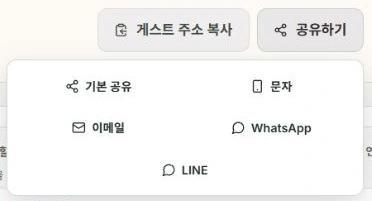
3. Send a short introduction with the link
Add a sentence explaining what guests can find. For example:
Hello, and thank you for booking. Here is your property guide.
The link includes arrival photos, Wi-Fi and air-conditioner and boiler instructions. Please send questions in this conversation.Property guide: (copied guest address)
Paste it into your Airbnb or other booking-platform conversation, check the property and link, then send it yourself. Copying a link in stayV does not send a message automatically.
The guide supplements your communication. Leave essential details such as the address and entry method in the booking-platform message as well.
4. Put a Guest guide QR in the room
Find Guest guide QR under the property’s Share QR / Print. Scanning it with a phone camera opens the guide you just checked.
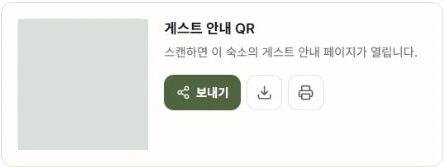
Select the down-arrow icon to the right of Share (Save image) to download it, or the printer icon (Print) to print it at sticker size. Keep the square shape and surrounding margin when adding it to your own sign.
Scan the printed sign where you will place it. Tiny prints or reflective laminates may be harder to read than the on-screen image. Add a label such as “Scan for house guide” so guests know its purpose.
5. Distinguish links, Guide Codes and door codes
| Name | Purpose | Things to know |
|---|---|---|
| Guest guide link/QR | Opens the property guide | Anyone can open it |
| stayV Guide Code | Opens booked-guest guidance such as the detailed address | It is not included in the QR; share it separately |
| Building/door-lock code | Opens an actual door | It is completely separate from the guide link and Guide Code |
Opening the link alone does not reveal booked-guest guidance. The guest needs a code and must reach the host’s chosen release time. Reservation preparation is covered from Episode 14 onwards.
The Wi-Fi connection QR is different again. It contains a password, so keep it out of photos posted to social media or promotional materials.
6. Check three things before sharing
Check the correct property, whether it opens on a phone, and whether the guest’s next action is clear.
When reusing a previous link, check the property is still live. If guests cannot open it, check the address and publication status first. If only certain cards are missing, check the code and release time.
Keep the first message focused on current needs and the link rather than explaining every feature.

Check your progress
- You used Copy guest address and opened it on your phone.
- You sent it yourself through the booking platform with a short explanation.
- You scanned the printed QR where it will be displayed.
Availability and things to know
Guest links and Guest guide QR codes are available on all plans. Wi-Fi connection QR codes are available on the paid Plus plan.
Read next
Episode 11 · Check your guide and publish it
Episode 13 · What does the stayV guide look like to a guest?