
How to use stayV Host · EP. 15
Using stayV HostFind schedules, access details and messages in Reservation operations
At a glance
The property editor and Reservation operations do different jobs. Follow one reservation from checking its dates to preparing access information and messages.


After finishing the introduction, you may wonder where reservations are managed. The property editor creates guidance; Reservation operations shows who stays when and helps you prepare codes and messages. Start by following one reservation rather than changing every setting at once.
At a glance
- Use the top Reservation operations menu rather than the property editor.
- Select the property and one calendar reservation to check its dates and source.
- Treat actual reservations and blocked dates differently.
- Mobile has Schedule, Reservations, Access and Messages tabs.
- Manage external calendar connections in Calendar integration at the bottom.
Learn more
1. Open Reservation schedule and access management
Expand Reservation operations and select Reservation schedule and access management. This menu is available on Plus. If it is missing, check your plan and whether you logged into the correct account.
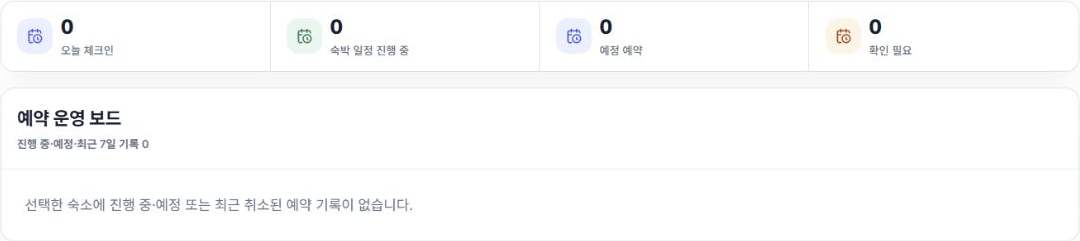
Calendar connections are outside Property editing. Schedules and access details are managed here.
2. Select the property and period
For several properties, select the property first and check the calendar’s year and month. Select a reservation bar to inspect its platform and check-in/out dates.
A calendar reservation does not mean guest guidance is ready. Imported Airbnb reservations may still need a stayV Guide Code and access details.
3. Distinguish reservations from blocks
A manual block reserves dates without representing a guest stay. Compare imported blocked or unverified events with the original platform calendar. Dashboard arrival, staying and departure counts include confirmed reservations only.
Dates held for repairs or personal use can remain blocked.
4. Use the mobile tabs
On mobile, use Schedule, Reservations, Access and Messages. The Reservations tab lists bookings; select one to view its details.
Access manages the selected reservation’s Guide Code and entry information. Messages manages text for the guest. Before preparing a code, recheck the property name and dates.
5. Find Calendar integration
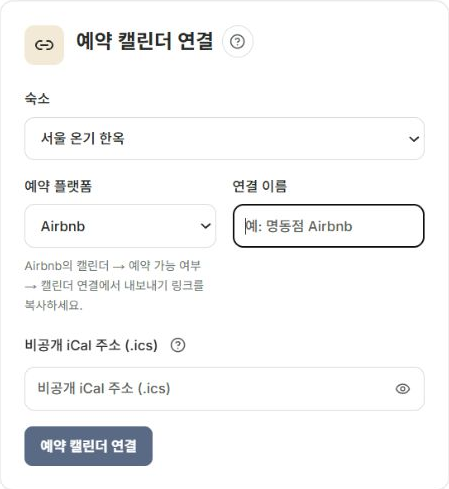
Expand the collapsed Calendar integration area at the bottom to see connected properties and the last sync result. Episode 16 explains connection setup.
After connecting, you do not need to revisit this area each time. Check sync results when today’s schedule differs from Airbnb or another source calendar.
6. Distinguish Property operations
Reservation operations → Property operations is a separate screen for today’s tasks and cleaning or inspection schedules. Viewing dates and recording completed cleaning happen in different places.
For each reservation, follow “check schedule → select reservation → check access information → prepare message.” Separately confirm that you sent the message and finished preparations on site.
Check your progress
- You selected the correct property and month.
- You can distinguish reservations, blocks and guidance readiness.
- You found Access, Messages and Calendar integration.
Availability and things to know
Reservation operations is available on the paid Plus plan. See Check your account and plan.
Read next
Episode 14 · Separate public guidance from booked-guest information