
How to use stayV Host · EP. 09
Using stayV HostWrite house rules and FAQs
At a glance
Separate rules guests must follow from questions they often ask. Includes examples for quiet hours, shoes and luggage storage.


Rules and common questions are easier to read when kept separate. “Please remove your shoes indoors” is a rule; “Can I leave luggage before check-in?” belongs in FAQ.
These real screenshots show a rule and FAQ entered and saved in the Seoul Ongi Hanok · Practice guide draft. The practice text is short; adapt the examples below for your property.
At a glance
- Rules answer “What must I follow?” FAQs answer “What should I do in this situation?”
- Check that rules match your Airbnb or other booking page.
- Give one action per rule and use specific times such as “after 10 p.m.”
- Use guests’ actual questions and answer with both availability and the next action.
- Save with Add custom rule or the Add FAQ button below the fields.
Learn more
1. Review existing rules
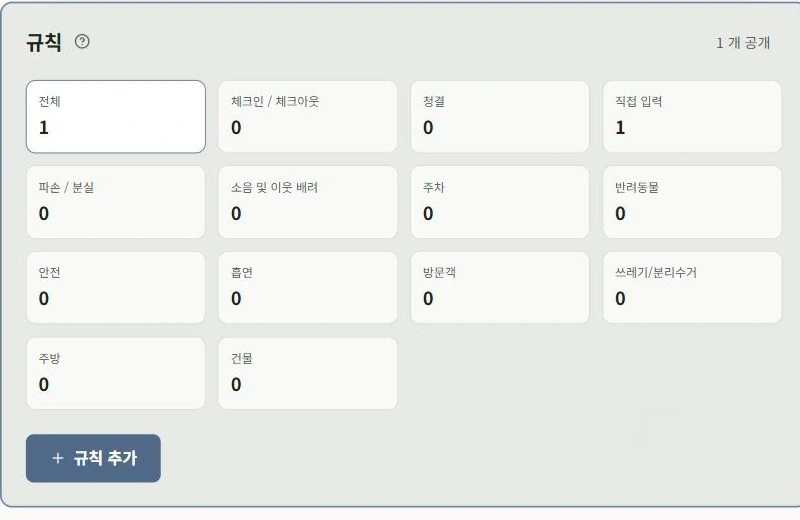
Select Rules in the editor and check the saved list.
Read your booking-platform rules before adding new ones. Conflicting quiet hours, smoking conditions or visitor policies leave guests unsure which to follow.
2. Give one action per rule
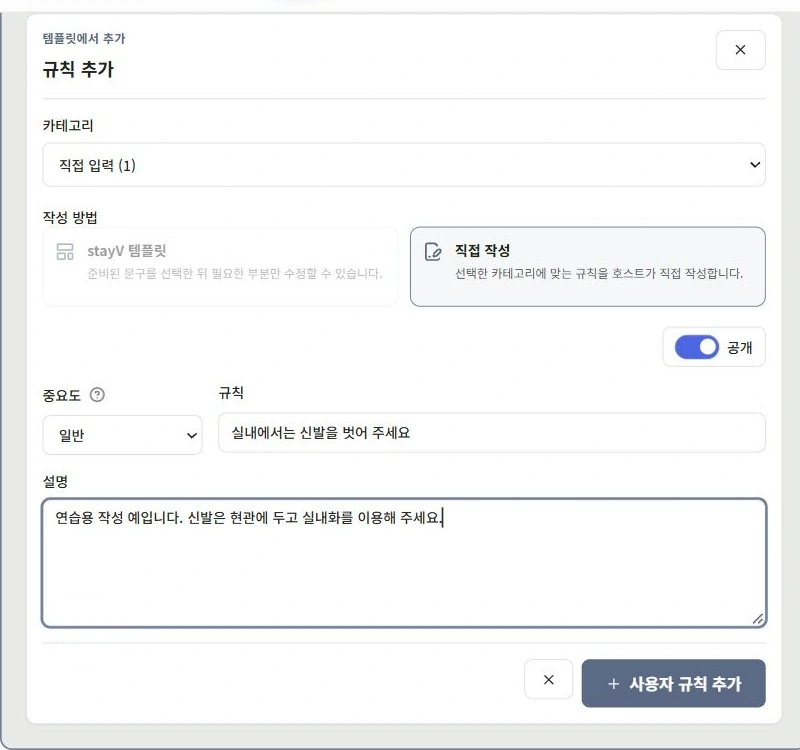
Select Add rule, then Custom input in the category (shown as “Custom input (1)” in the screenshot). Write your own is selected automatically. Write a short action in the Rule field.
Use the description for the reason and practical details. Split separate prohibitions into separate items so guests scanning a mobile list can see them.
Example rule
Rule: Please keep quiet after 10 p.m.
Description: Local residents share this residential area. From 10 p.m. to 8 a.m., please avoid loud conversations or music in the courtyard and corridors.
Rule: Please remove your shoes indoors
Description: This hanok uses floor heating, and shoes can damage the floor. Leave shoes in the entrance cabinet and use indoor slippers.
The screenshot uses a shorter practice description. Adapt examples to your property; do not promise items such as slippers if you do not provide them.
3. Save and check the list
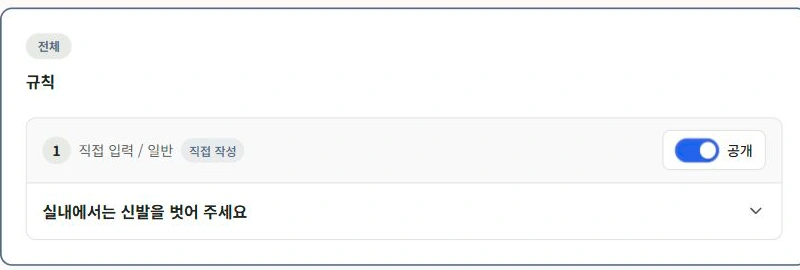
Check visibility and importance, then select Add custom rule. Confirm the new rule appears.
Review display settings and order. Remove outdated rules and duplicates phrased differently. Put the most important rules first.
If using a suggested template, adapt it to your actual services, items and rules before saving.

4. Phrase FAQ questions as guests ask them
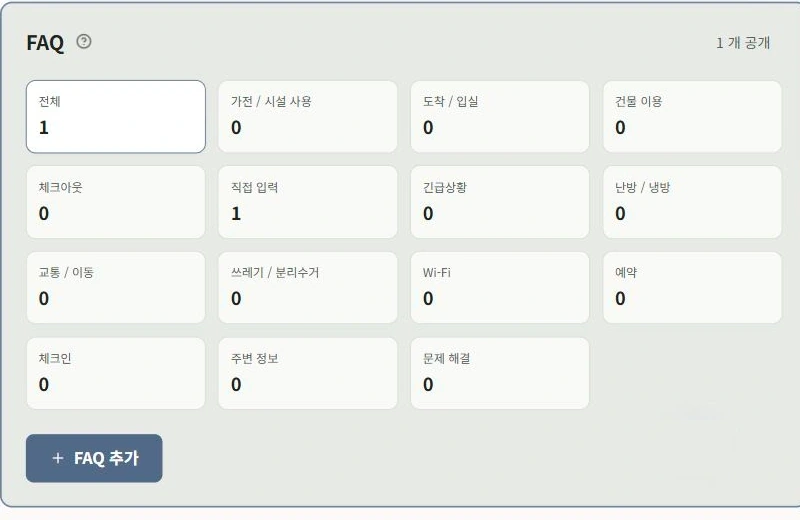
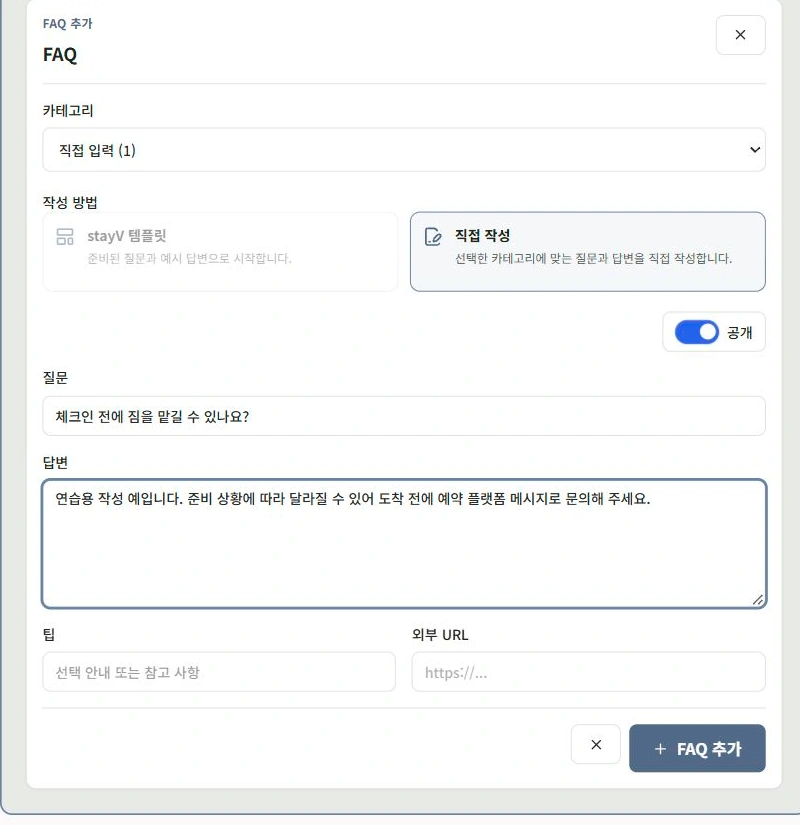
Open FAQ, select Add FAQ and choose Custom input. Write your own is selected automatically. In Question, use wording such as “Can I leave luggage before check-in?” rather than “Luggage information.”
Start with questions you actually receive, such as luggage storage, extra towels or rubbish disposal.
5. Explain availability and the next action
“It depends” leaves guests needing to ask again. Say whether something is possible and how to arrange it.
If you offer luggage storage
Question: Can I leave luggage before check-in?
Answer: Yes. You can use the luggage cabinet inside the entrance from 10 a.m. until check-in. Message us through your booking platform 30 minutes before arriving, and we will explain where it is.
If storage is unavailable
Answer: We cannot store luggage at the property. Paid lockers are available outside Mangwon Station Exit 2.
Be clear when you cannot provide storage. Suggest alternatives only after checking them yourself.
Keep exact addresses, entry codes, Wi-Fi passwords and guest names or contact details out of FAQs. Manage them in dedicated fields; the answer can explain where guests should look.
When finished, select Add FAQ below the fields. It has the same name as the opening button, but the lower one saves the question and answer. Check it appears in the list. When your operation changes, update the existing answer.

6. Find the question and read its answer as a guest
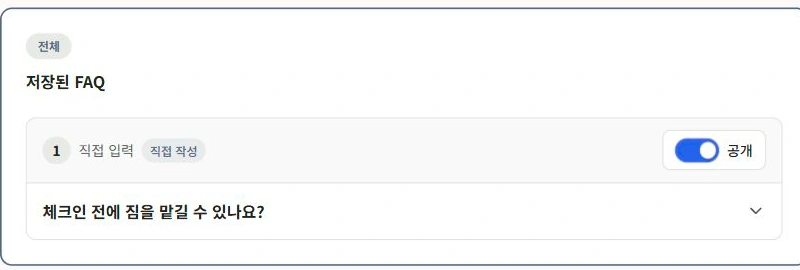
Open Preview and go to Rules and FAQ. Check that the rule reads clearly and tapping the question opens its answer. For published properties, check the actual guest link too.
Good guidance lets guests choose the right item from the title and understand their next action.
Note the wording when a question recurs. Updating the question title or first answer sentence can improve findability without writing a new, long explanation.

Check your progress
- Rules match those on the booking page.
- Each rule gives one action with specific times or places.
- FAQ answers explain what is possible and what to do next.
Availability and things to know
Rules and FAQs are available on all plans. Suggested templates are available on the paid Plus plan.
Read next
Episode 8 · Add amenity instructions for air conditioners, boilers and more
Episode 10 · Create a multilingual guide for international guests