
How to use stayV Host · EP. 07
Using stayV HostCreate stay information: check-in, check-out and Wi-Fi
At a glance
Organise frequently requested information such as check-in times and Wi-Fi, then create useful cards such as departure instructions. Includes adaptable examples.

Questions such as “What time is check-out?” and “Where can I find the Wi-Fi?” belong together in Stay information. Let’s check the basic details and create one card guests can use immediately.
These screenshots show information entered and saved in the Seoul Ongi Hanok · Practice guide draft. Wi-Fi is left blank for practice. Adapt the examples to your property.
At a glance
- Check times, Wi-Fi and parking at the top of Stay information first.
- Match times exactly to Airbnb or your other booking pages.
- Make one common question into a Check-in, Check-out or Quick information card.
- Save the top fields with Save stay information and each card with Save card.
- Use wording guests actually ask in card titles.
Learn more
1. Check the basic information first
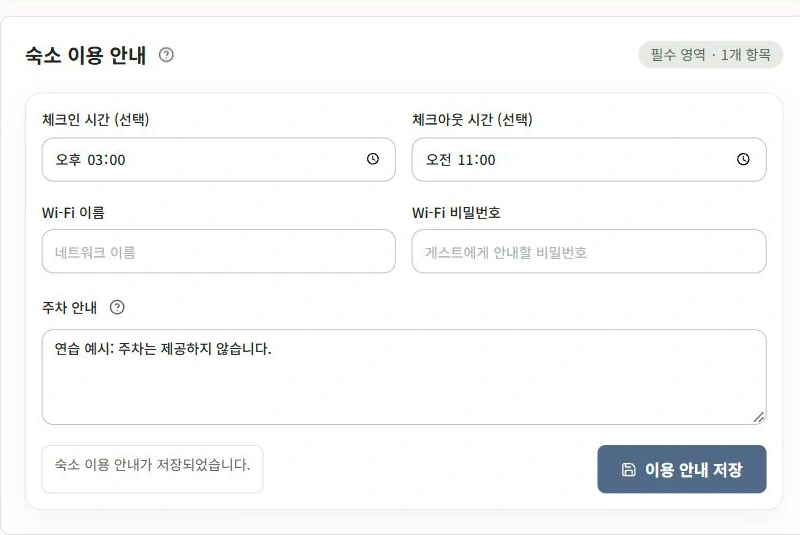
Select Stay information in the property editor. At the top are frequently needed details such as check-in and check-out times, Wi-Fi and a short parking summary.
Review these before creating many cards. Times must match the booking page, or guests will need to ask which is correct.
2. Use the dedicated Wi-Fi and parking fields
Enter the network name and password in the dedicated Wi-Fi fields. Repeating a password in cards can leave conflicting versions after a change or show it to unintended readers. Keep it in one place.
Before saving, test the network name and password on your phone. If several networks have similar names, make it clear which to select.
Keep the parking summary brief, for example: “One free space in front of the building; please tell us before arriving.” Use Episode 6’s Arrival cards under Car/Parking for its location and directions.
After changing these fields, select Save stay information and confirm it finished. This is separate from saving the cards below.
3. Turn one common question into a card
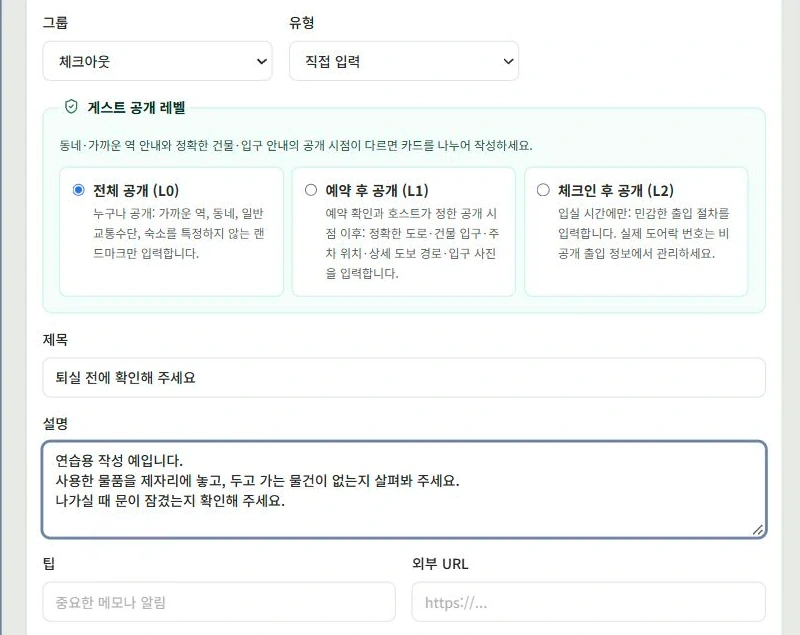
Open Add stay information card and choose one of three groups.
| Group | What belongs here |
|---|---|
| Check-in | Arrival tasks, such as storing luggage or removing shoes |
| Check-out | Departure tasks, such as rubbish, key return or checking belongings |
| Quick information | Details needed during the stay, such as Wi-Fi troubleshooting |
Try a title such as “Before you check out” or “Wi-Fi will not connect” rather than “Notice.” You do not need to fill every group. Start with questions you receive often.
4. Write instructions guests can act on immediately
Long greetings and several situations in one card can hide the task. Write short actions in order. For example:
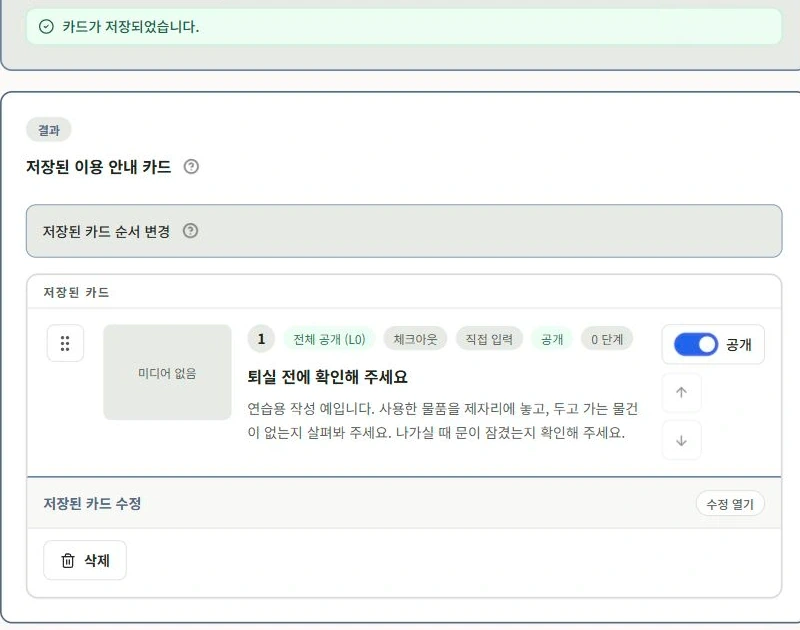
Title: Before you check out
Check-out is at 11 a.m.
① Sort rubbish into the recycling bins next to the entrance.
② Put used towels in the bathroom basket.
③ Check that you have your charger, passport and other belongings.
④ Pull the door handle once after leaving to check it has locked.
The practice screenshot uses a shorter version. Adapt locations and tasks to your property. Keep only necessary guest actions rather than asking guests to do the host’s cleaning work.
For Quick information, include a simple check guests can try and a way to contact you if it fails.
Title: Wi-Fi will not connect
Check that the network selected on your phone matches the name in the guide, including upper- and lower-case letters.
The router is beside the TV. If its light is off, press the power button.
If it still does not work, message us through the platform where you booked.
Put everyday instructions such as turning on the air conditioner in Episode 8’s Amenities section. You can expand Stay information steps to explain a process step by step. Do not ask guests to dismantle or reset equipment.
5. Check the audience and save the card
Where disclosure settings appear, choose who should read the card and when. Information is not automatically hidden because you put it in Stay information.
Keep exact addresses, Wi-Fi passwords, building and door codes, guest names and contact details out of card text and photos. Use their dedicated fields.
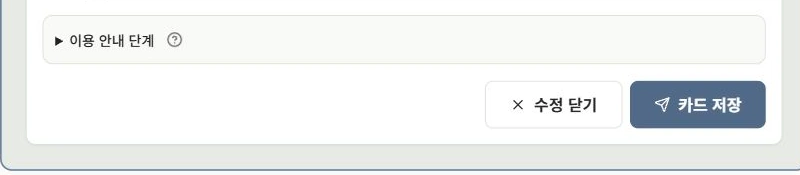
Select Save card and check that the card appears. Remove outdated duplicates and check that a departure card is in Check-out rather than Check-in. Put frequently needed cards near the top for mobile readers.
6. Open the guide as a guest looking for a time
Open Preview at the top and find the basic times and new card. Can you choose the correct card from its title and immediately see what to do?
For a published property, check the guest link too. Information reserved for booked guests, such as Wi-Fi, should be hidden before a code is entered.
If the same questions keep coming, revise the title and first sentence before adding more cards. Using the guest’s own question as the title can make guidance much easier to find.

Check your progress
- Check-in and check-out times match the booking page.
- You entered Wi-Fi in its dedicated fields and tested it on your phone.
- You made and saved a card for one common question.
Availability and things to know
Stay information and its cards are available on all plans. Some features, including step-by-step guidance, vary by plan.
Read next
Episode 6 · Create arrival instructions and choose when guests see them
Episode 8 · Add amenity instructions for air conditioners, boilers and more